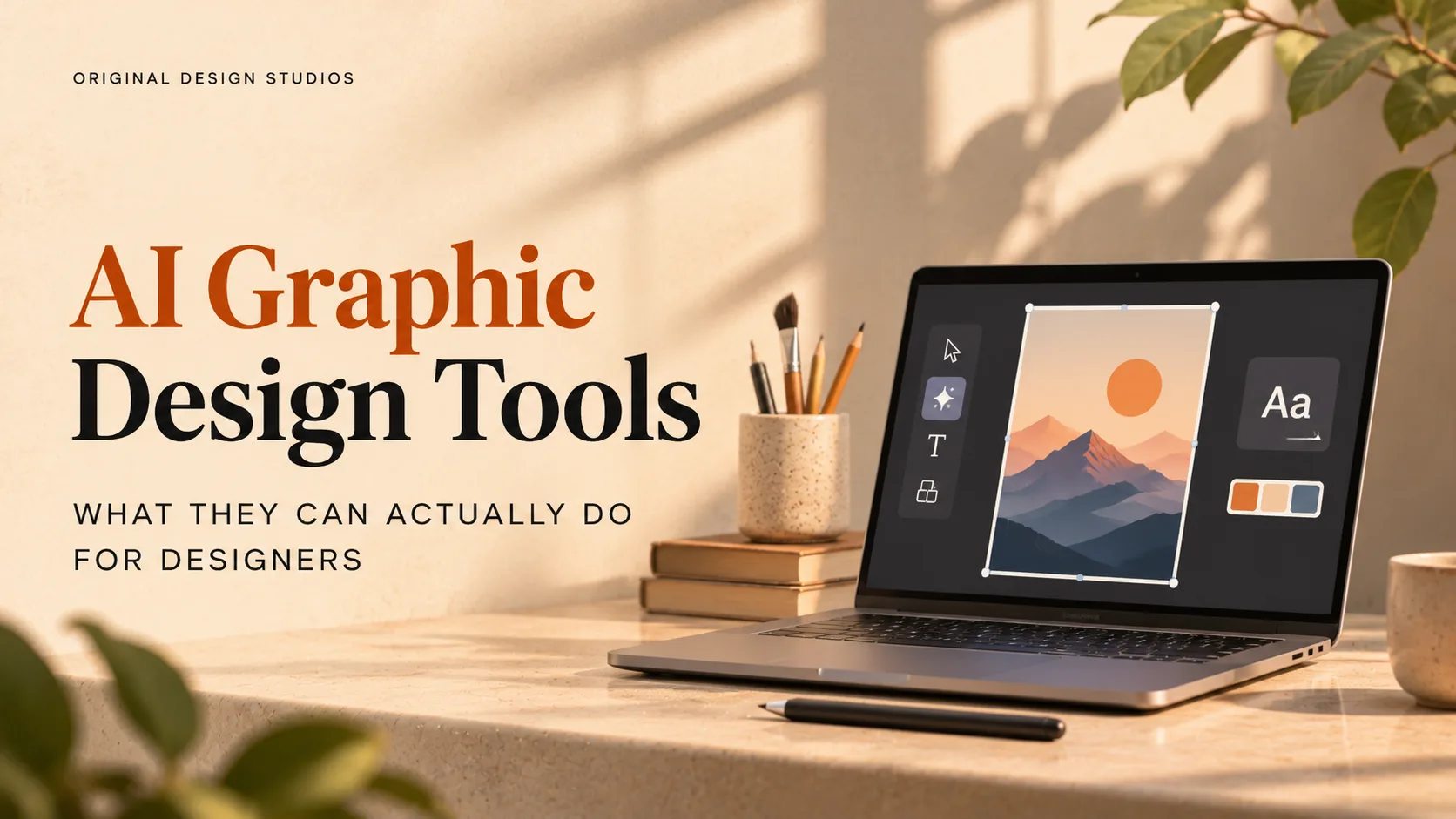
AI Graphic Design Tools: What They Can Actually Do for Designers
Compare five AI graphic design tools on editable vectors, saved styles, licensing and credit costs, plus a test brief to run before you pay.
Take a designer who asks an image tool for a poster headline, “Print Fair 2027”, and gets artwork back with the words spelled three different ways. That is the smaller problem, because the fix is to retype the headline.
The harder ones arrive later, when a client asks for vector files, the second poster has to match the first, or someone wants to know what the licence allows. AI graphic design tools answer those questions very differently.
This guide compares seven of them on what happens after the first image appears, from editable files to the licence terms behind the output. That is where studios lose time and take on risk, so it is where we spent our attention. One of the seven changes which plan a company may buy once its revenue passes a set line.
What Is AI Graphic Design?
AI graphic design is the use of generative models to create or edit visual assets, from images and vector artwork to mockups, starting from a text prompt, a reference image or an existing file. A designer still chooses the direction and signs off on each output.
Four limits mark where it stops. Most image generators render words as pixels, so a misspelling has to be retyped rather than edited. A raster image has no editable shapes, so most changes mean rebuilding it, and enlarging it far beyond its size softens detail. Unless a tool offers saved styles or reference images, each request is generated on its own. And a vendor’s licence states what the vendor allows, while copyright protection for generated work depends on local law.
Key Benefits of AI in Graphic Design
Inside those limits, the gains are practical.
Wider exploration: Several directions can be tested while the brief is still open.
Quicker format changes: Expand tools can extend an image to a new format, such as a square version of a poster, though the added area needs checking.
Repeatable looks: A saved style lets a set of assets share one look without starting each from scratch.
Editable starting points: Vector output gives revisions paths to edit, though generated paths may still need cleanup.
How much of each benefit a designer gets depends on the tool, which is what the ranking below measures.
How We Ranked the Tools
Four criteria decide the order. Three answer the limits above (flat files, style drift and rights), and cost clarity covers what a designer must know before committing. The lettering limit is not scored, because it depends on the brief, and it returns in the test under How to Choose.
Order | Criterion | What counts | Why it matters |
|---|---|---|---|
1 | Editable output | Vector paths, a vector editor or image layers inside a design file | A flat image forces a rebuild for every revision |
2 | Style control | Saved styles or reference images | They decide whether a second poster, or a tenth, can match the first |
3 | Usage terms | Commercial-use statements, private-generation options and plan or company-size conditions | Rights language matters most once work goes to a client |
4 | Cost clarity | Published plan names, prices and allowances | A cheaper plan can run out sooner than a dearer one, so allowances count as much as prices |
We put editable output first because it is the cost that returns with every revision. Recraft scores highest on the first two criteria, and Figma ranks above Adobe Express and Canva because it adds vector conversion and a reference image per generation, where the two template tools rely on brand kits. Midjourney and Ideogram come last because both offer generation without layout or vector tools, and Midjourney ranks higher for stating its commercial terms.
Best AI Graphic Design Tools
The seven tools below follow that order. Prices are in US dollars and show the billing basis of each plan, so annual and monthly figures are labelled as such.
1. Recraft
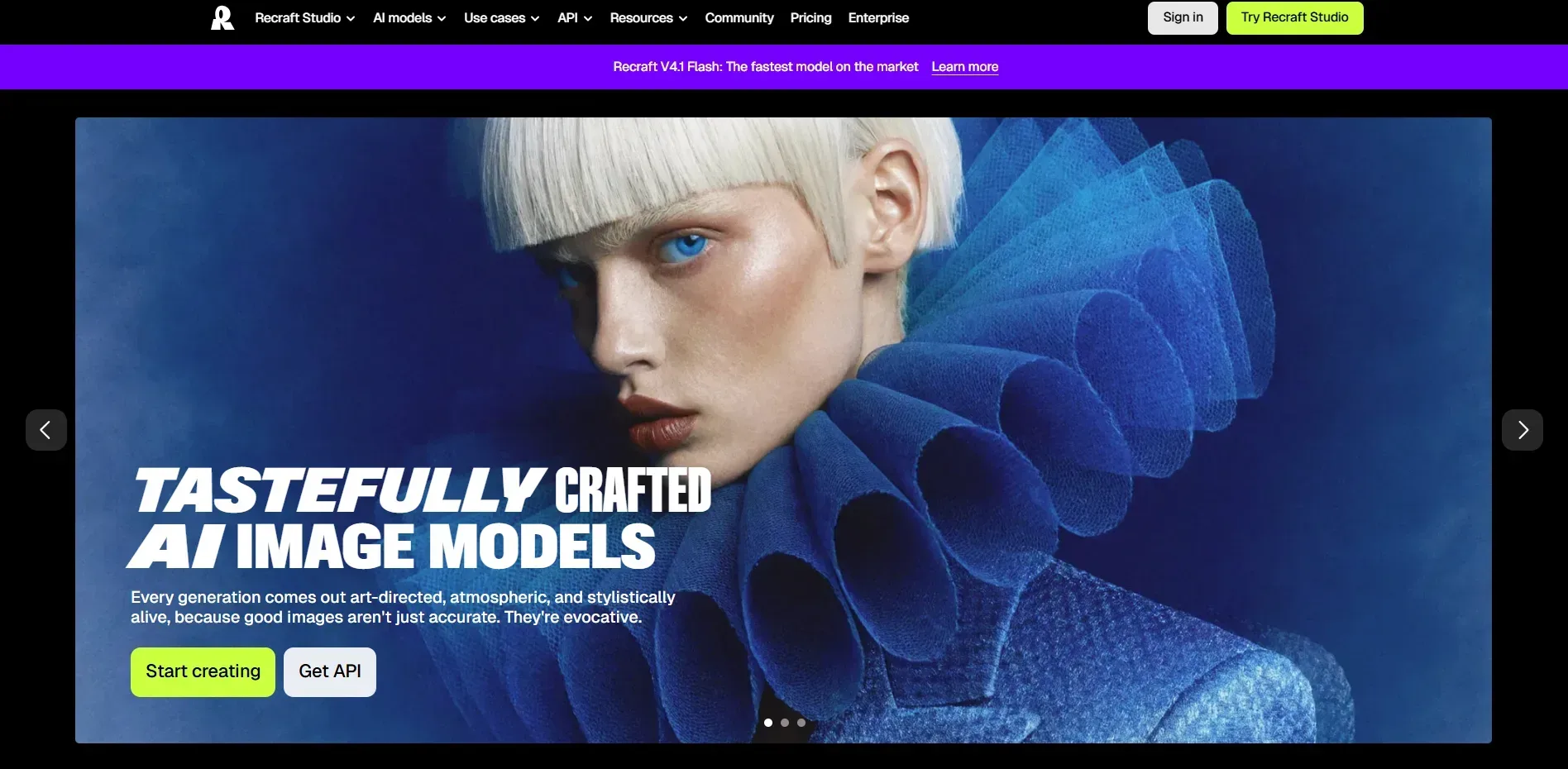
Recraft Studio is a web workspace for generating and editing images, vectors and mockups with Recraft’s own models and leading external ones. Generated images can be exported as SVG, PNG, JPEG or Lottie files. Recraft sells plans for individuals and for teams. We would reach for it first when a client needs vector files that still look like one brand.
What you get
Vector tools: A vector editor lets anchor points be reshaped and single shapes recoloured, and vectorizing sits in the same studio.
Custom styles: Reference images define a look the studio can repeat, and the Teams plan adds shared custom styles.
Design extras: Logo generation, mockups and colour palettes come with the studio.
Private, commercial paid plans: Every paid plan includes private generation and commercial usage rights while subscribed.
What you don’t
Free-plan images carry no commercial licence: They are public and belong to Recraft, so they typically cannot go on stock platforms.
Third-party models are unaddressed: Recraft does not say how images from other makers’ models are treated.
Pricing
Free: $0, with 30 credits a day
Basic: $10 a month billed annually
Pro: Starts at $16 a month billed annually
Teams: Starts at $18 a month billed annually
Best for: Designers who need editable vector assets and one look held across a set.
Watch: Recraft tutorial on creating a style once and reusing it on every asset.
2. Adobe Firefly
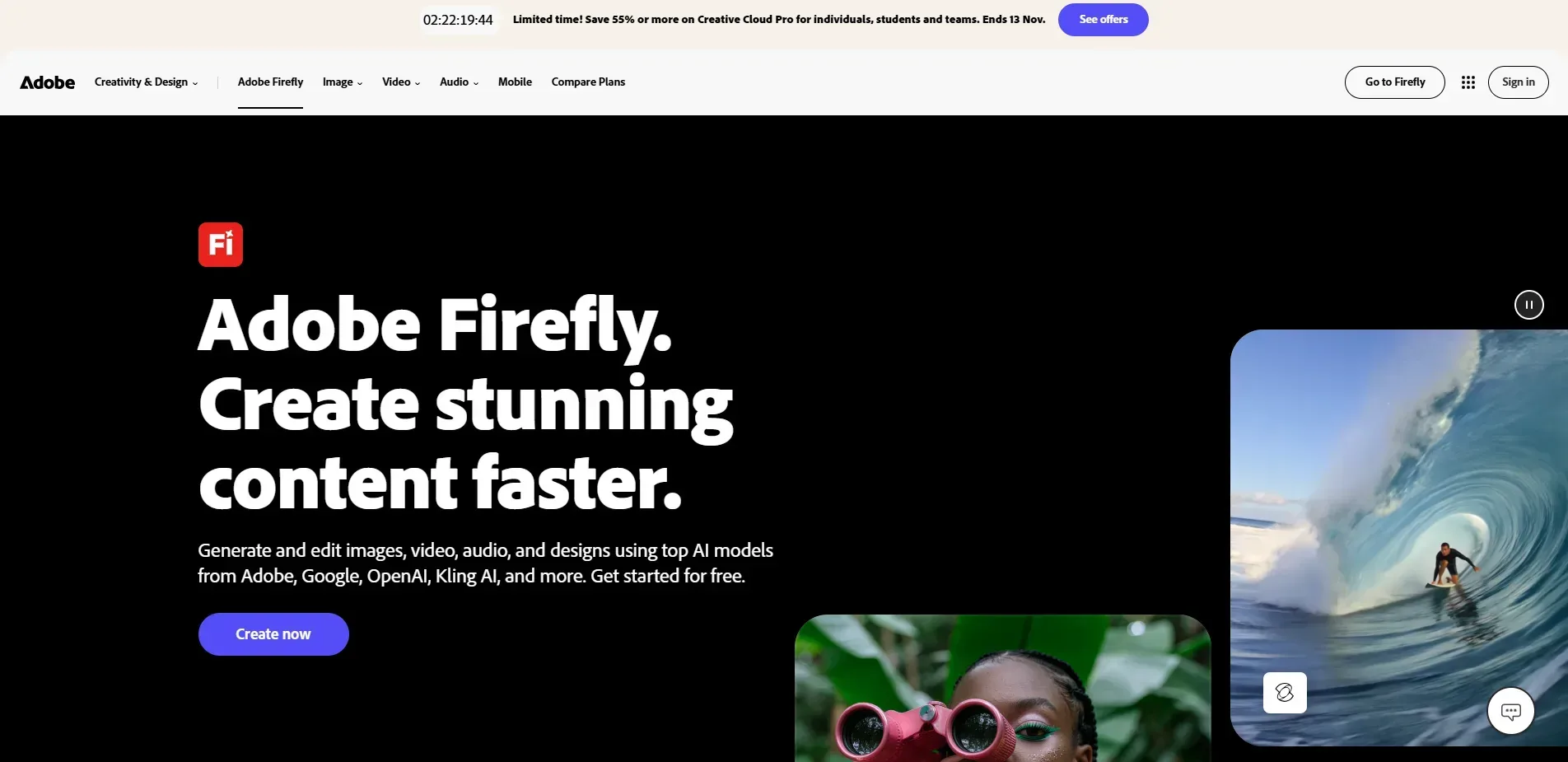
Adobe Firefly is Adobe’s creative AI service for generating and editing images, video and audio, available on the web and mobile and inside Photoshop, Illustrator, Premiere, Lightroom and Adobe Express. One monthly credit balance covers those apps. Paid plans also include unlimited access to Firefly Boards, a space for exploring ideas. We would make it the default for any studio already paying for Adobe.
What you get
Vector output: Text to Vector Graphics produces vector artwork rather than pixels.
Edits to existing images: Generative Fill and Generative Expand change or extend images already on the canvas.
Model range: Credits also reach video, audio and partner models from Google, OpenAI and others, alongside Adobe’s own Firefly Video Model.
Stated clearance: Adobe says Firefly model outputs are safe for commercial use, trained on licensed and public-domain content, with Content Credentials attached automatically.
What you don’t
Partner models are your call: Adobe leaves it to you to judge whether partner-model output suits a project.
Indemnification is narrow: Adobe describes IP indemnification for select outputs as available to eligible enterprise customers.
Pricing
Free: $0, with free daily generations
Standard: $9.99 a month
Pro: $19.99 a month
Pro Plus and Premium: $49.99 and $199.99 a month
Best for: Designers who work in Adobe apps and need vector artwork and edits to existing images.
Watch: Beginner tutorial on Text to Vector in Adobe Firefly.
3. Figma
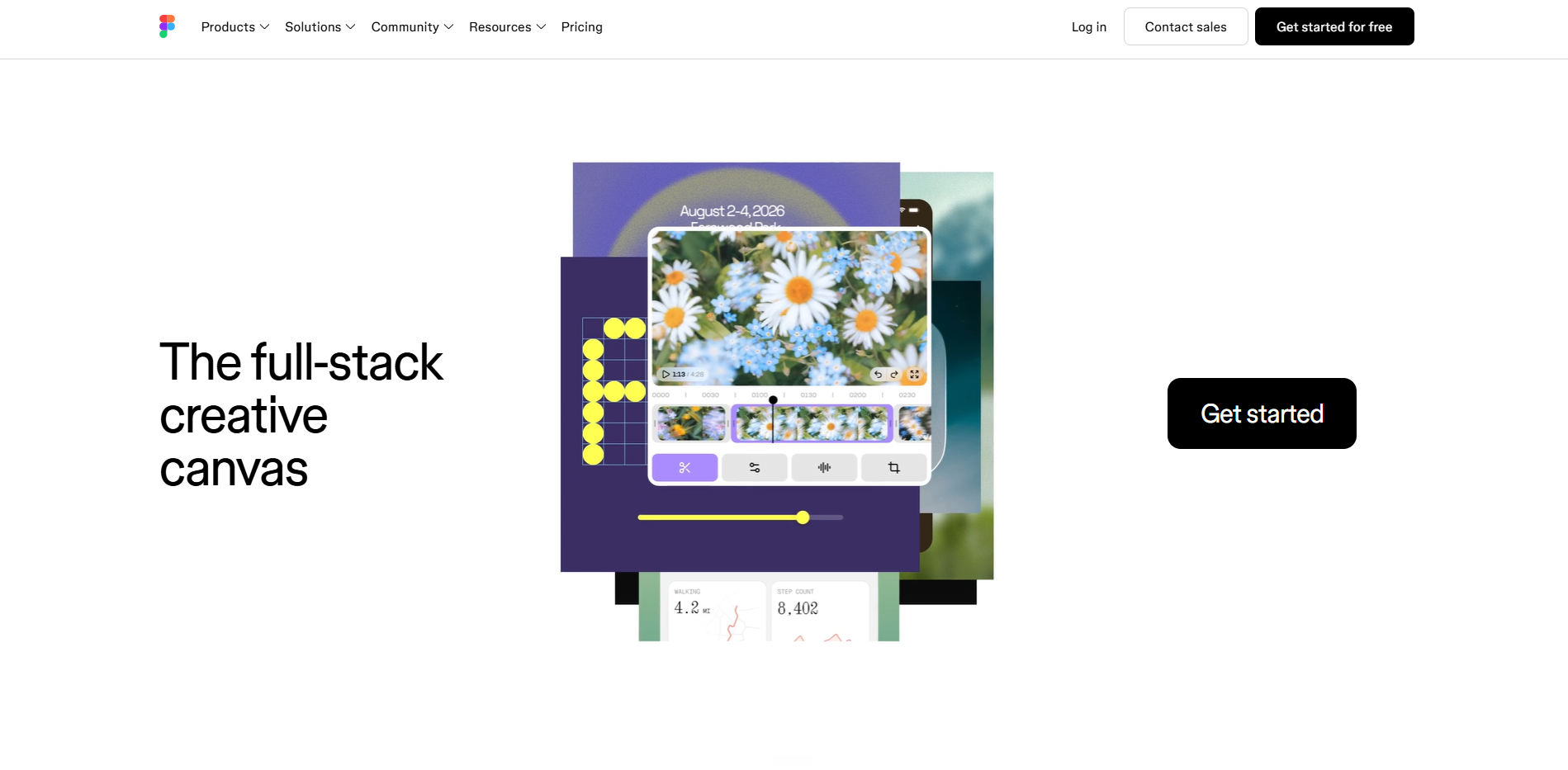
Figma is a collaborative design platform, and Figma AI adds image generation and editing to Figma Design, FigJam, Figma Draw, Figma Slides, Figma Sites and Figma Buzz. Its tools generate new images, remove backgrounds, improve resolution, expand images and remove objects. Using them requires edit access to the file. We would use it for cleanups and fills where the design already lives.
What you get
On-canvas generation: Make an image fills a frame or shape, with a choice of AI model and an optional reference image.
Prompt edits: Edit with prompt changes images made in Figma or added to the file.
Object tools: A lasso selection can erase an object or isolate it as a new layer.
Finishing tools: Remove background, Expand image and Boost resolution sit in the toolbar, and Vectorize image converts a raster image to vector.
What you don’t
Starter plan limits: On the Starter plan, the AI image tools work only in Figma Design.
One shared credit pool: Image work draws on the same credits as every other Figma AI feature and product.
Pricing
Starter: Free
Professional: $16 per Full seat a month billed annually
Organization: $55 per Full seat a month billed annually
Enterprise: $90 per Full seat a month billed annually
Best for: Designers who build in Figma and want image fills and cleanups inside the file.
Watch: Walkthrough of removing backgrounds with Figma AI.
4. Adobe Express
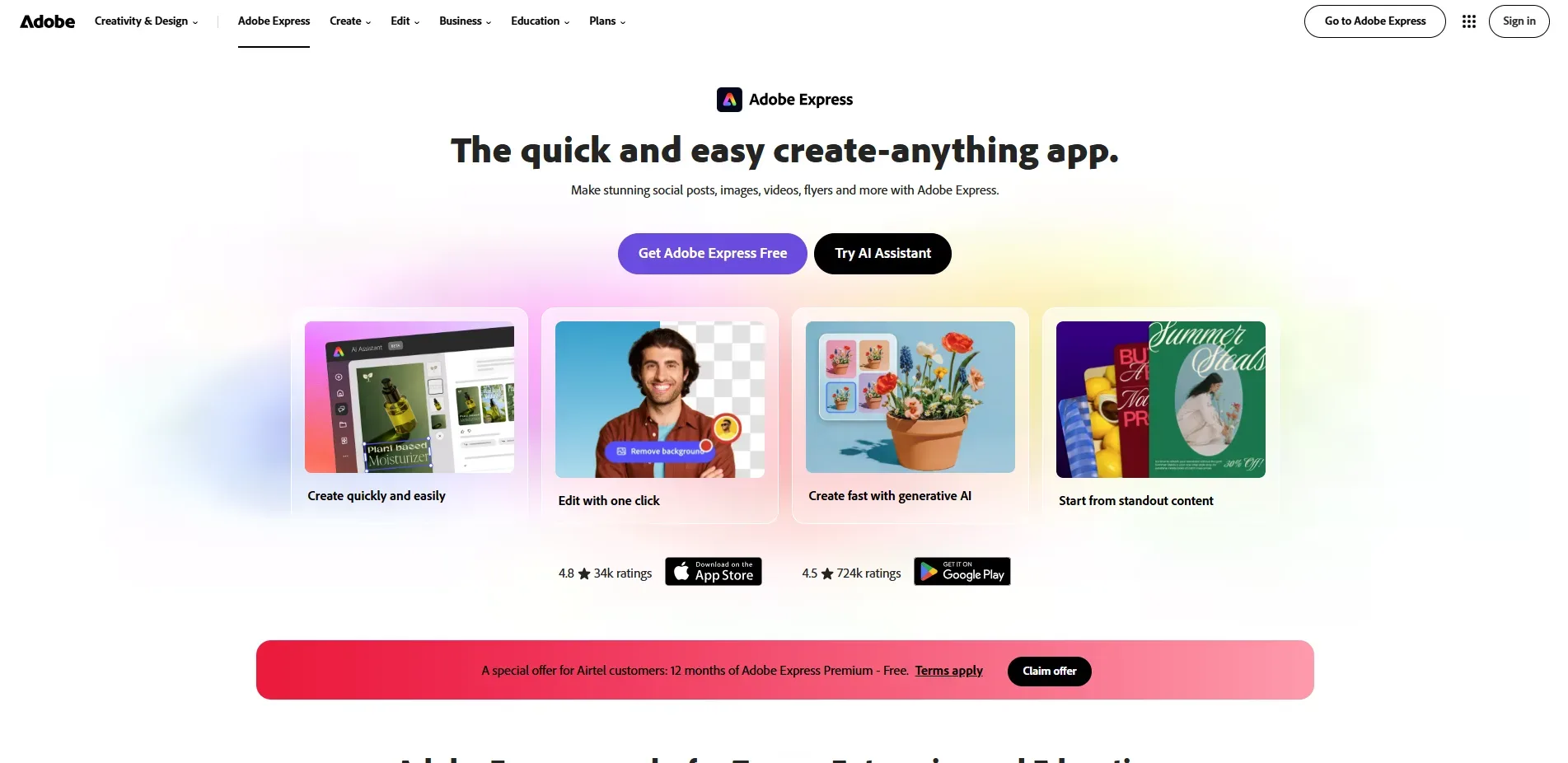
Adobe Express is Adobe’s all-in-one design, video, photo and PDF app, built around templates and available in desktop browsers and on mobile. Its generative features run on Adobe Firefly and are designed to be commercially safe. Plans run from a free tier through Premium to Teams and Enterprise. We would pick it for the quickest route from a template to an on-brand post.
What you get
Template-based editing: Posts, flyers, logos, presentations, video and PDFs start from templates that stay editable in the app.
Brand kits and resizing: Premium adds brand kits and one-click resizing for multiple channels.
Photoshop and Illustrator sync: .psd and .ai files added to a design stay synced with edits made in those apps, with a Photoshop or Illustrator membership required.
Generative tools: Images, text effects and templates can be generated, with free daily generations on the Free plan.
What you don’t
Small credit allowance: Premium includes 250 generative credits a month, and a larger allowance means Firefly Pro.
Beta features may be personal use only: Adobe says outputs from a generative feature it flags as beta cannot be used commercially.
Pricing
Free: $0
Premium: $9.99 a month
Firefly Pro: $19.99 a month, with Express Premium included
Teams: $7.99 per licence a month, or $4.99 in the first year, with a two-seat minimum
Best for: Designers and small teams producing on-brand social and print graphics from templates.
Watch: Walkthrough of setting up a brand kit and templates in Adobe Express.
5. Canva
Canva is a template-led design platform, with AI tools such as magic resize and background remover sitting beside millions of templates, photos and brand kits. Plans run from a free tier through Pro for individuals to Business for teams. Business adds collaboration, team admin tools and approvals. We would choose it when a team needs approvals and brand control more than fine editing.
What you get
Template library: 1.6M+ templates on Free and 3.6M+ on paid plans, including premium ones.
Brand kits: One on Free, five on Pro and 100 with approvals on Business.
AI allowance: Pro includes 10 times Free’s monthly AI usage and Business 20 times, with background remover and magic resize on Pro.
Commercial use: AI-created content may be used commercially under Canva’s AI terms.
What you don’t
Copyright depends on local law: Ownership as between you and Canva does not settle whether the content is protected where you work.
Prompt and edit rules: Prompts cannot name known brands, characters or people without permission, and edited images need rights to the original.
Pricing
Free: $0
Pro: $144 billed annually, or $18 a month billed monthly
Business: $250 per person billed annually, or $25 per person a month billed monthly
Enterprise: Custom quote
Best for: Designers and marketers building social, print and presentation graphics from templates with brand consistency across a team.
Watch: Walkthrough of building an AI-powered brand system in Canva.
6. Midjourney
Midjourney turns text prompts into images and can animate them into short video clips. Its plans are measured in GPU time, with four tiers from Basic to Mega. Annual billing takes 20% off. We would use it to find a direction, never to finish a layout.
What you get
Images from prompts: Text prompts produce images on every plan.
Video: Images can be animated into clips, in SD on Basic and in SD and HD on the other three plans.
Stealth Mode: Images and videos stay private on Pro and Mega.
Commercial terms: General Commercial Terms apply to all four plans.
What you don’t
A revenue line: A company with more than $1,000,000 in gross annual revenue must be on Pro or Mega.
No layout or vector tools: Midjourney produces images and video, so finishing happens in other software.
Pricing
Basic: $10 a month, or $96 billed annually
Standard: $30 a month, or $288 billed annually
Pro: $60 a month, or $576 billed annually
Mega: $120 a month, or $1,152 billed annually
Best for: Designers exploring directions early, such as moodboards and concept images.
Watch: Full beginner tutorial covering images and video in Midjourney.
7. Ideogram
Ideogram is an AI generator for images and video, known for rendering legible text inside images. Every plan includes all of its image and video models. Enterprise customers can have private custom models trained on their own visual data. We would try it first for posters where the lettering is the design.
What you get
Every model on every plan: Plus, Pro, Team and Enterprise all include the full set of image and video models.
Private generation: Plus and Pro include private generation.
Consistency tools: Unlimited character consistency and unlimited slow credits come with Plus and Pro.
Batch generation: Pro adds batch generation and the largest generation queue.
What you don’t
Priority credits are capped: Plus includes 2,400 a month, Pro 7,500 and Team 3,600 per user, and unlimited slow credits cover the rest.
Enterprise is quote-only: Custom models and API volume discounts come with contact-us pricing.
Pricing
Plus: $15 a month billed annually, or $20 billed monthly
Pro: $42 a month billed annually, or $60 billed monthly
Team: $20 per user a month billed annually, or $30 billed monthly
Enterprise: Contact us, billed after use
Best for: Designers who need readable lettering inside generated images, such as posters and social graphics.
Watch: Full guide to creating text images in Ideogram.
Each entry shows what a tool offers on its own, but the decision depends on how the seven differ side by side.
How the Seven Tools Compare
The table lines the tools up on what they make, how output can be edited afterwards, how a look is kept consistent and how usage is metered.
Tool | What it makes | Editing afterwards | Style control | Usage metered by |
|---|---|---|---|---|
Recraft | Images, SVG vectors, mockups | Vector editor, vectorizing | Saved custom styles | Credits per action |
Adobe Firefly | Images, vectors, video, audio | Generative Fill and Expand | Image Style Transfer | Credits for premium features only |
Figma | Images on the canvas | Layers, erase, expand, vectorize | Reference image per generation | One shared AI credit pool |
Adobe Express | Template designs, generated images | In-app edits, linked .psd and .ai files | Brand kits on Premium | Credits, 250 a month on Premium |
Canva | Template designs, AI edits and generation | In-app template editing, magic resize, background remover | Brand kits, from 1 on Free to 100 on Business | Monthly AI allowance, 10 times Free on Pro |
Midjourney | Images, short video | None | Style and Omni Reference | GPU hours |
Ideogram | Images, video | None | Character consistency, custom models on Enterprise | Priority credits, plus unlimited slow credits |
Metering is the column that changes a purchase most. Firefly, Midjourney and Ideogram each keep an unmetered lane, while Recraft and Figma charge per action, so a Recraft exploration run costs 16 credits against 1 to 5 for a Figma background removal.
The table narrows the field on paper, and the next section turns it into a choice.
How to Choose an AI Graphic Design Tool
Five factors decide which tool earns a place in your workflow, and the first two usually narrow the field before the rest apply.
Deliverable type: Vector logos and icons point to Recraft or Firefly, where vector generation is offered. Layered image work inside a design file points to Figma, template-led social and print graphics point to Adobe Express or Canva, lettering-heavy images point to Ideogram, and early exploration points to Midjourney.
Where the file is finished: A tool saves the most time when it sits in the app where layout is completed. Adobe files favour Firefly or Express, Figma files favour Figma, Canva files favour Canva, and a standalone studio adds an export step.
Style control: Sets of assets that must match, such as an icon family or a campaign series, favour tools with saved styles, brand kits or reference images over tools that treat each request on its own.
Cost pattern: Steady still-image work suits a plan with an unmetered lane, such as Firefly’s unlimited standard generations, Midjourney’s unlimited Relax-mode images on Standard and above, or Ideogram’s unlimited slow credits. Experimental, high-volume work suits a large credit pool, so count the runs in a typical project and price them with the per-action credit costs above.
Rights, privacy and records: Check company size, plan tier and model before billing a client, and confirm private generation before confidential work starts. Log the tool, plan, model and accountable person for every element that ships, as the studio’s Originality Charter does.
Run one brief through the two tools that survive the first two factors. We would use an A3 poster headed “Print Fair 2027” plus a square social version, and check every letter, the hierarchy through contrast, whether the artwork arrives as editable paths or layers, and whether the second poster matches the first. That result settles the tie, and for a vector-led job we would test Recraft and Firefly first.
Whichever tool wins today, how these tools charge and host models is already changing.
Questions
5Which AI tool is best for logos and icons?
Recraft and Firefly are the two that document vector generation, so they are the first to test. Open the output in your editor either way, because generated paths may still need cleanup.
Can AI-generated graphics be used for client work?
Often, but it depends on the vendor, the plan and sometimes the model, so read each tool’s limits above before billing a client.
Is there a free AI graphic design tool?
Four of the five have a free plan or tier, namely Recraft, Firefly, Figma and Adobe Express. Midjourney lists none, and Recraft’s free plan does not include a commercial licence.
Will AI replace graphic designers?
No. AI is not going to replace the graphic designers fully but the role is definitely changing rapidly. AI can do repetitive and manual tasks but cannot replace strategic, critical thinking, emotional intelligence and creativity.
How should AI use be recorded for a client?
Note the tool, the plan, the model and the person accountable for each generated element that ships. That log answers where an asset came from, which is the first thing a client is likely to ask.
Conclusion
The next change in AI graphic design tools is already visible in how they charge. Several now put more than one maker’s models behind a single interface, and each model carries its own credit cost and sometimes its own terms. Recraft prices actions by model, Figma varies an image’s cost by the model chosen, and Adobe counts partner-model output against credits.
That changes what a designer should keep on file. Beside the plan, the useful record is the model behind each element and its credit cost, because both can differ inside one project. We would add a model field to every project file starting now. Studios that keep that log on stills will have a defensible answer when a client asks where an asset came from, and a budget that survives the move to motion, where Firefly’s video model and Midjourney’s animation already sit.
For many designers the next deliverable after the poster is a screen, and the studio’s guide to reviewing an AI-generated interface before you ship it applies the same habit to generated images, canvases and prototypes.