Best Free Image-to-Video AI Tools: Credits, Rights & Limits
Six free image-to-video AI tools compared on blind-vote model quality, clip allowance and output rights, with one table to compare them.

Three train wheels fusing into one halfway through a clip says more about an image-to-video tool than its credit count ever will. Free tiers make that flaw expensive, because every retake spends a balance that does not come back.
We compared six of the best free image-to-video AI tools on blind-vote model quality, clip allowance and output rights. Dreamina has the strongest model on a free plan, and Google Flow has the allowance that is easiest to plan around, so we would start with one of those two.
One entry has no credit balance at all, and the comparison table near the end shows how the picture changes once clips per allowance sit next to model scores.
How Does Image-to-Video AI Work?
Every tool here takes one uploaded still and a short prompt and returns a clip. The image acts as the first frame of the clip, and the model builds the frames that follow from the picture and the text, so only the motion is invented. Text-to-video generators build both the scene and the motion from words alone, which is why an image-led tool gives more control over how the first frame looks.
Four failure patterns repeat across tools, and each one costs a retake.
Parts that fuse or morph: Wheels merge, bushes fuse into trees and a holding hand blurs halfway through, even in the best-rated models.
Motion that stalls or loops: A stiff gesture repeats like a skipping record, or wheels stay frozen while the steam keeps moving.
A first frame that gets ignored: Some models invent a new scene with jump cuts instead of animating the photo you uploaded, so the clip stops matching your image.
Prompts that describe the picture: The still already carries subject, lighting and style, so a prompt that repeats them leaves the motion to chance.
The checks below are built around those four failures.
How the Tools Are Compared
Each free plan goes through three checks, and the table near the end puts the results side by side.
Model quality: The blind-vote Elo of the best model the free plan reaches, taken from the AA-Video-I2V v2.1 board on Artificial Analysis's image-to-video leaderboard, where voters choose between videos made from the same input image.
Clip allowance: Published credits divided by published credit costs, with three attempts assumed for every usable clip.
Output rights: The watermark, commercial terms and upload terms on the free plan.
Plan details come from each platform's own help pages, including Google's Flow credits page, Dreamina's free-credit FAQ and pricing page, Kling's credit guide, PixVerse's plan reference and Runway's Free plan article. Google's switch for the visible watermark is documented in press coverage. Where a vendor states nothing, the table reads "Not stated" instead of a guess.
Entries run from the highest blind-vote score down, with CoAnimator placed fourth as the one option that has no credit meter, and Runway comes last because it has no score. Scores rate the models and not the free modes of each plan, so a high score only helps when the free plan reaches that model.
Best Free Image-to-Video AI Tools
Each entry covers what you get, what you don't, the pricing and the work it suits best.
1. Dreamina
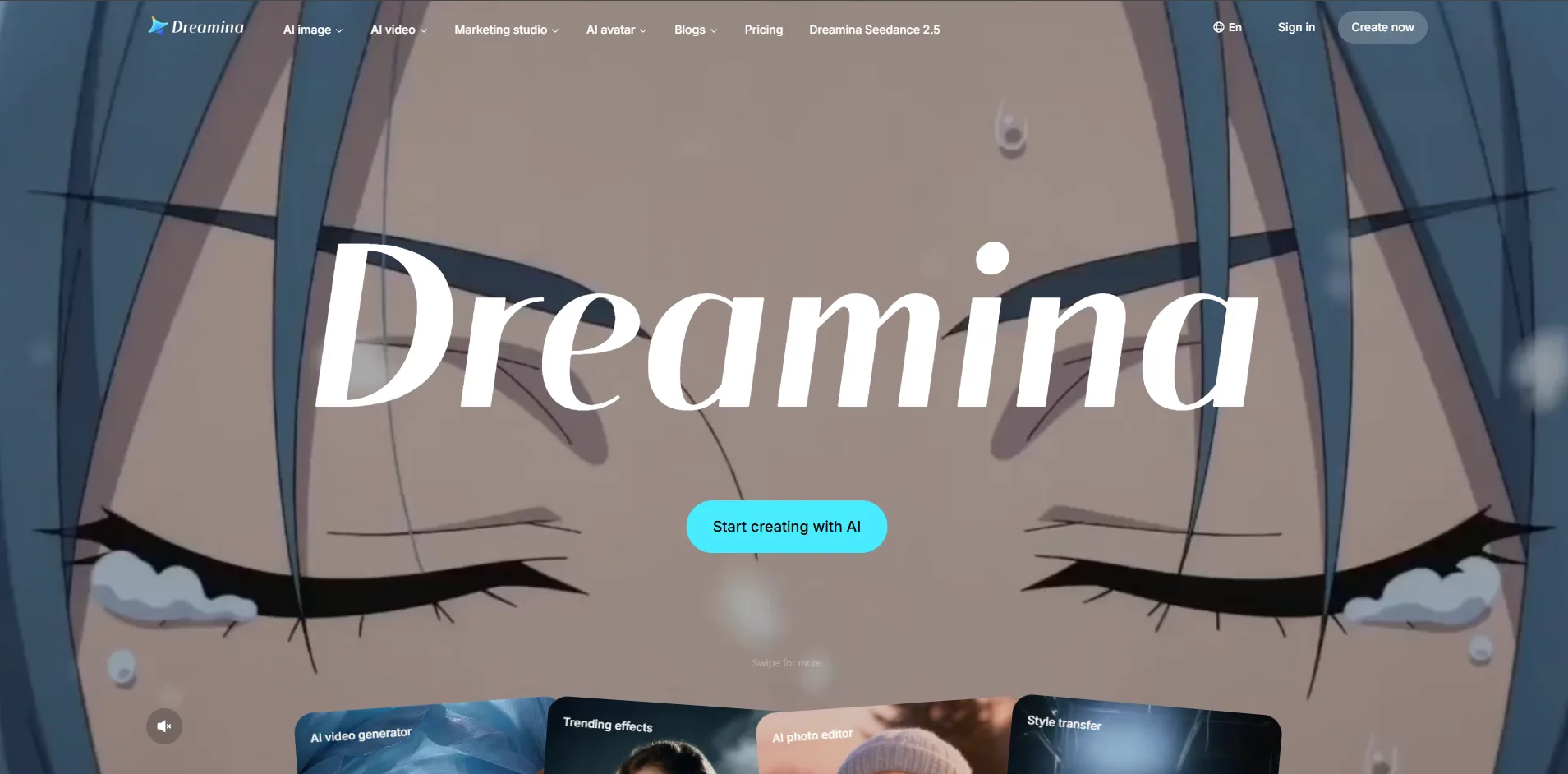
Dreamina is CapCut's AI image and video platform from ByteDance. Free accounts get a daily credit allowance for available models, including Seedance 2.0 for video and Seedream 5.0 Lite and Nano Banana for images.
Seedance 2.0 scores 1140 Elo in blind votes, third on the leaderboard behind Seedance 2.5 and Utopai X, and Dreamina names Seedance 2.5 as its newest model. A top-three model on a free daily allowance is rare, and it is the main reason Dreamina leads this list.
What You Get
Still and clip in one balance: Seedream 5.0 Lite builds or repairs the source image, then Seedance 2.0 animates it, all from the same credits.
Image-led input: Seedance starts from the uploaded still, and Seedance 2.5 adds multi-reference workflows.
Cost shown first: The credit quote appears before each generation, so a retake never spends credits by surprise.
Daily refill: The allowance returns every day instead of every month.
What You Don't
Stamped, slower free output: Paid plans add watermark-free downloads and a faster queue, so free clips carry a Dreamina mark and wait behind paying users.
No fixed clip price: Cost varies by model, mode and settings, so the number of free clips has to be read from the in-app quote.
Pricing
Free: 120 credits a day for US accounts, with other regions receiving different amounts
Basic: $15 a month, 1,575 monthly credits
Standard Plan: $21.60/month
Advanced Plan: $79.50/month
Ultra Plan: $260.00/month
Best For: Anyone who wants the highest-ranked model available on a free plan.
Watch: How to Use Dreamina Seedance 2.0 for FREE in 2026
2. Google Flow
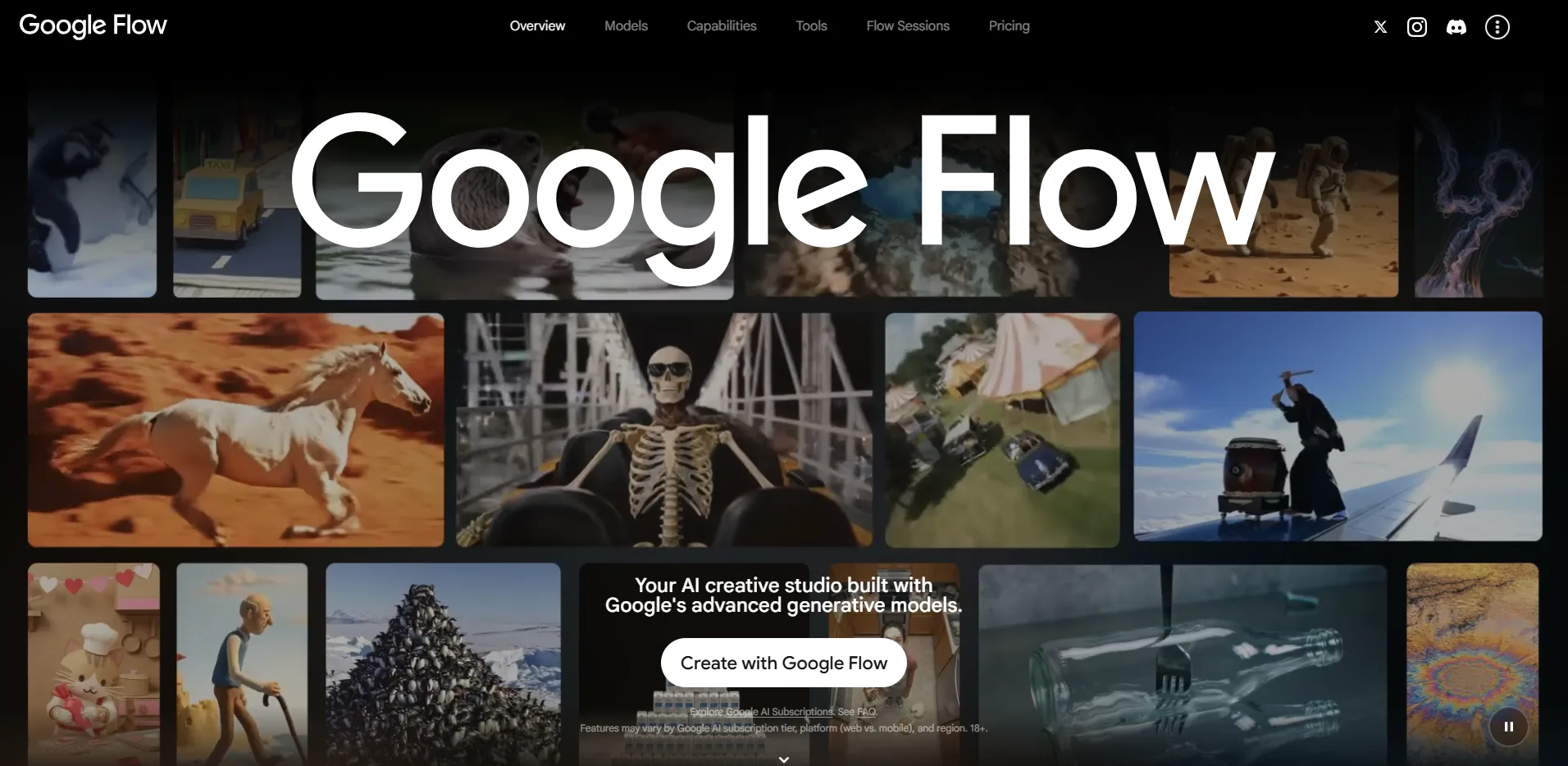
Google Flow is Google's AI studio for video and images. Free accounts can generate with Omni Flash 1.2 and Veo 3.1 Lite, and Frames to Video starts a clip from an uploaded image.
Omni Flash 1.2 is Google's newest video model and scores 1086 Elo in blind votes, well above Veo 3.1 Lite at 931, so free credits go further on Omni Flash. Google retires Veo 3.1 Fast and Quality on December 5, which leaves Lite and Omni Flash 1.2 as the free options.
What You Get
Published credit costs: Omni Flash 1.2 costs 1 credit a second at 360p and 3 at 720p, and Veo 3.1 Lite costs 10 credits per clip, so a day's balance can be planned to the credit.
Clip counts you can predict: 50 credits buy five Lite clips, five 10-second Omni clips at 360p or three 5-second Omni clips at 720p.
Cheap drafts: A 360p draft costs a third of the 720p price, which makes it the natural setting for testing an idea before a final render.
Native audio: Both model families generate sound with the video.
Optional watermark: Google lets users switch off the visible mark in settings, except where local law requires it, while the invisible SynthID mark stays on every file.
What You Don't
Peak-hour block: Without a subscription, video generation may be unavailable for roughly three hours around 2 PM to 5 PM UTC.
Expiring balance: The refill starts after the first generation of the day, and unused credits do not roll over.
Pricing
Free: 50 credits a day
Google AI Plus: From $4.99 a month, 200 monthly credits
Google AI Pro: From $19.99/month, 1,000 monthly credits
Google AI Ultra: From $99.99/month, 10,000 monthly credits
Google AI Ultra: From $199.99/month, 25,000 monthly credits
Best For: People who want a daily allowance they can plan to the credit.
Watch: Creating in Flow | How to use Google's new AI Filmmaking Tool, from Google.
3. Kling
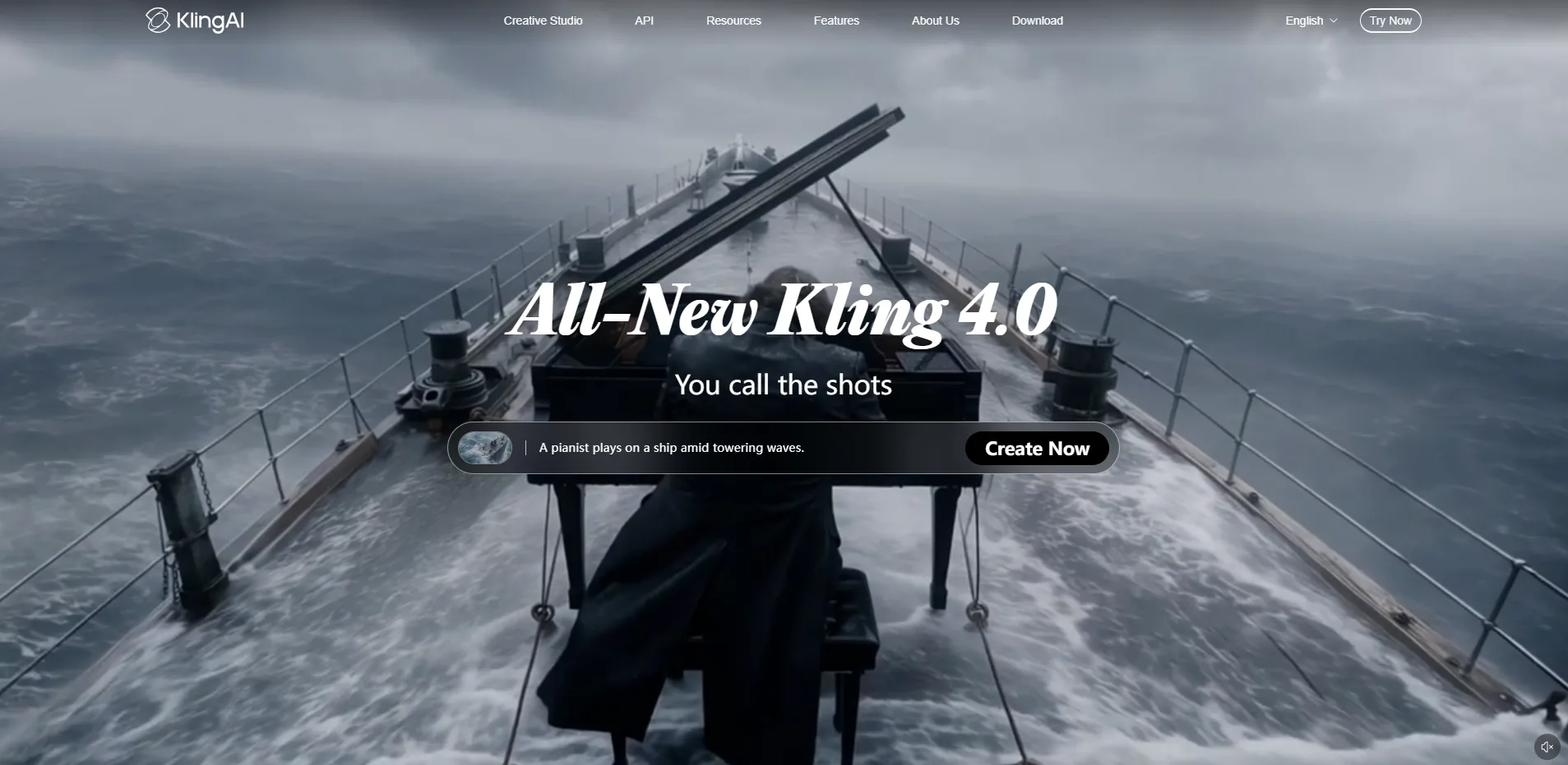
Kling is Kuaishou's AI video generator, with text-to-video and image-to-video modes. Kling 3.0 generates native audio and clips up to 15 seconds, and Kling 4.0 is the newest release.
Kling 3.0 scores 1000 Elo in blind votes, the reference point of the leaderboard, and Kling 4.0 has no score yet. Many roundups still quote 66 free credits a day, a figure from Kling's launch period. Free accounts now get a monthly claim in an amount Kling does not publish, and a 5-second 720p clip with audio costs 45 credits on Kling 3.0.
What You Get
Hand and gesture motion: Finger movement reads as realistic, which suits portraits and performances.
Native audio: Sound generates with the clip.
Frame and camera controls: End-frame control, camera controls and voice selection sit in the workspace, though free accounts get fewer camera options.
Long clips: Kling 3.0 supports clips up to 15 seconds.
Image-to-video on free: The free Basic tier includes image-to-video access.
What You Don't
Hidden allowance: Kling does not publish the free claim, and without fast-track generation free accounts wait behind paid ones.
Stamped, non-commercial output: Free clips carry a watermark and fall outside commercial use, and the plan lists no 1080p benefit.
Pricing
Free: Monthly claim valid for 31 days, amount unpublished
Standard: $8.80 a month, or $79.20 a year, 660 monthly credits
Best For: Portraits, gestures and hand motion for people who can plan around a monthly claim.
Watch: Kling AI Tutorial 2026: Text to Image + Image to Video for Beginners
4. CoAnimator
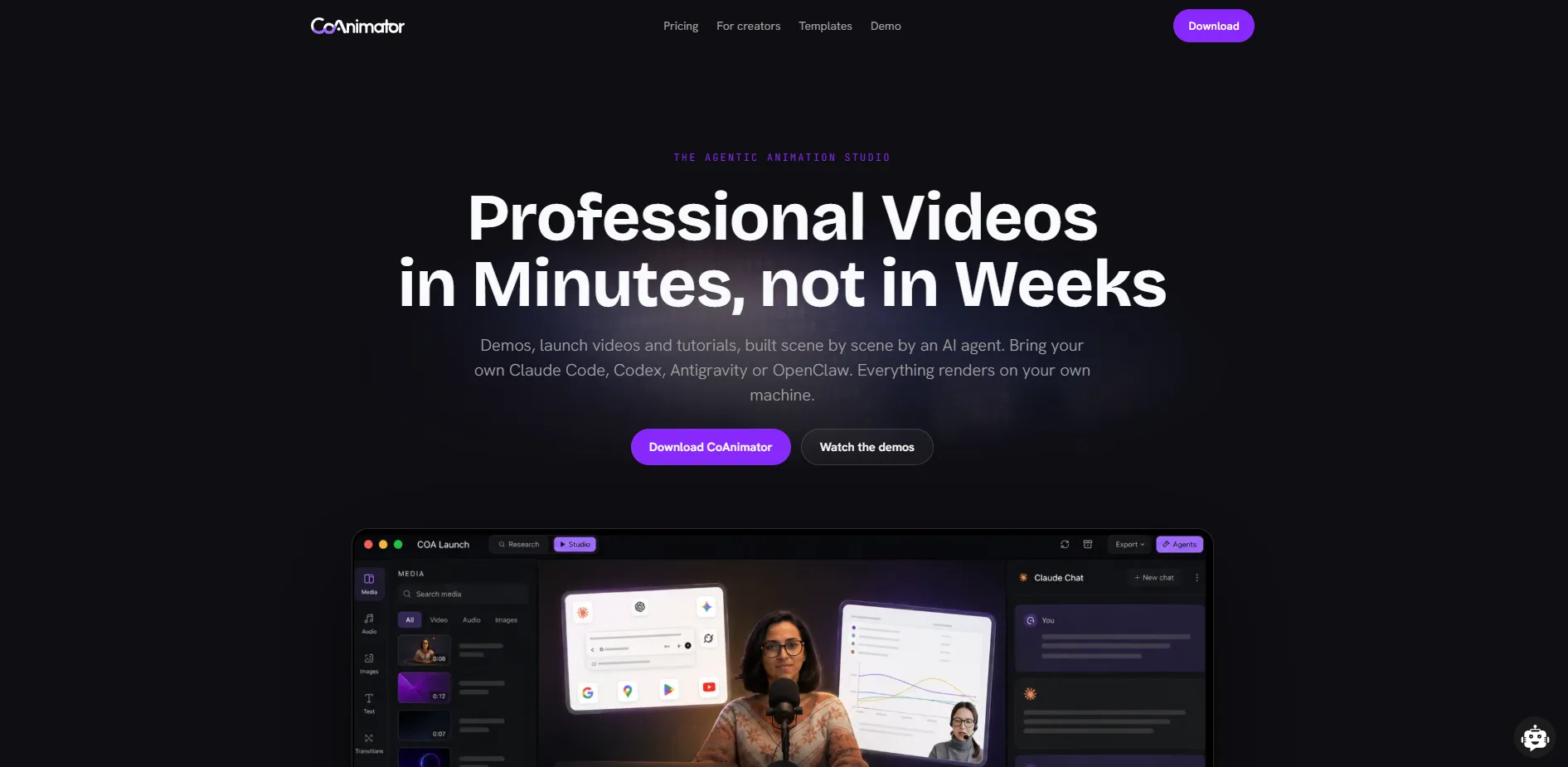
CoAnimator is an agentic animation studio where an AI agent the user already works with becomes the co-animator. The user describes a product demo, launch video, tutorial or explainer, and the agent drafts the script and builds the video scene by scene.
Projects live as editable files, so a launch video can be updated after a product change by editing one scene and rendering again. It starts from a description instead of a photo, so no blind-vote score applies, but it answers the problem every other entry shares, which is a balance that runs out.
What You Get
Any agent works: Claude Code, Codex, Gemini, OpenClaw or any agent that can read files and run shell commands can act as the co-animator.
Live direction: The video takes shape on a stage scene by scene, and the user can redirect at any moment.
Git-friendly files: Project files stay editable weeks later and work with git.
Templates and plugins: Templates give starting points for different video types, and plugins add voice, music, screen capture, publishing and research.
No credit meter: Exports are unlimited, so there is no balance to refill or ration.
What You Don't
Agent-dependent results: Quality varies with the connected agent, the prompt and how much direction is given.
Not a photo animator: It has no AI avatars and does not turn a single photo into generated motion.
Pricing
Free: Free forever, with no credit meter
Lifetime license: One-time purchase, no subscription
Best For: Product demos, launch videos, tutorials and explainers that will be revised over time.
Watch: MCP360 product demo, made entirely in CoAnimator, from CoAnimator.
5. PixVerse
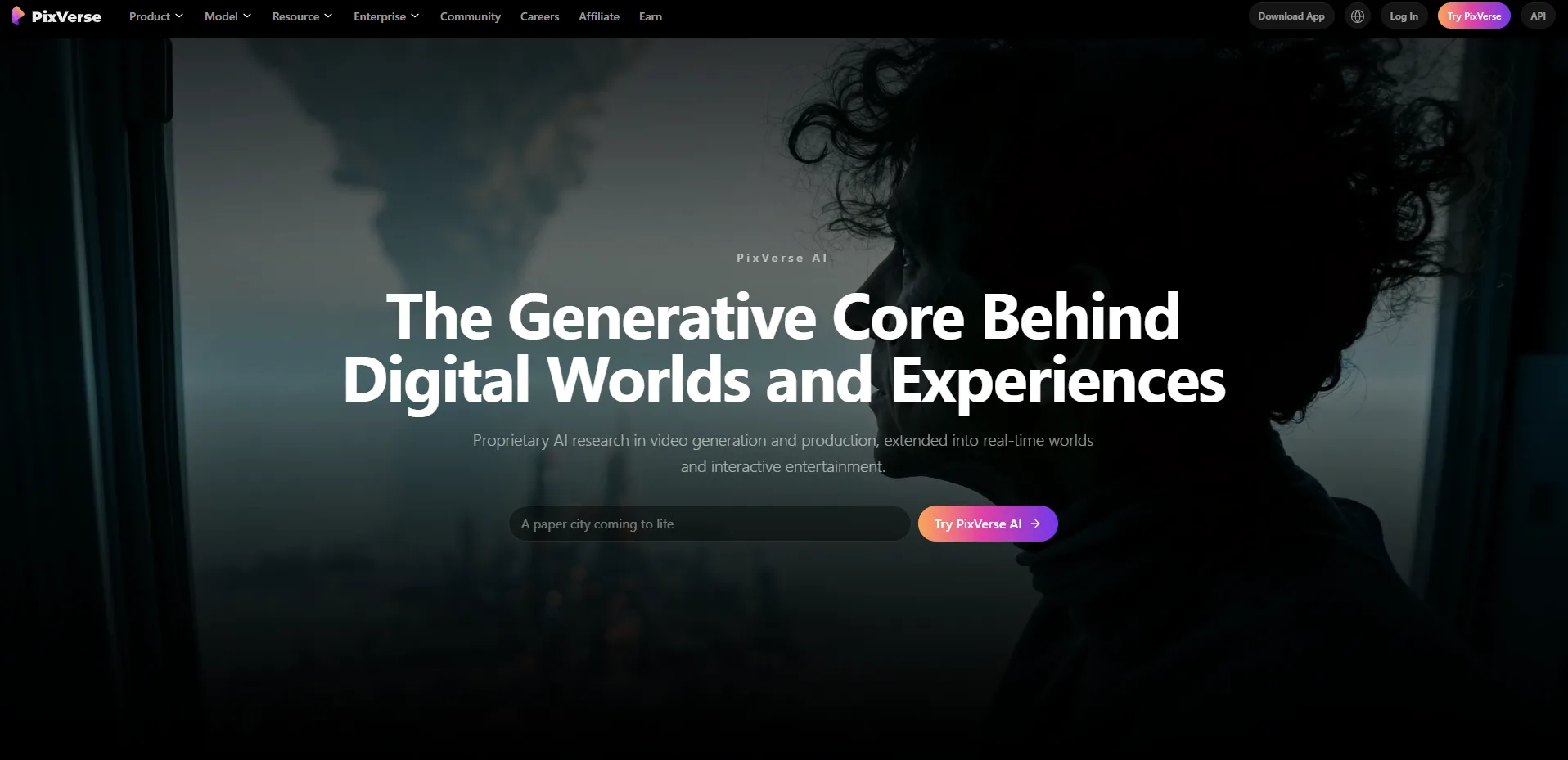
PixVerse is an AI video platform with its own V6 model, a node-based Canvas and a separate developer API. The web app also lists partner models such as Seedance, MiniMax and Kling in its model selector, and which ones a free account can use depends on the plan.
V6 scores 959 Elo in blind votes, below Kling 3.0 at 1000 and Seedance 2.0 at 1140, so the model chosen in the selector can matter more than the PixVerse name on the tab.
What You Get
Native audio and lip sync: Sound effects and speech generate with the clip.
Camera and multi-shot control: V6 supports camera direction and multi-shot options.
Short clips: Lengths start at 1 second, so a loop does not pay for a long take.
Canvas workspace: Prompts, references and outputs connect as nodes, so a project can be adjusted and rerun.
Fixed refill clock: Daily credits renew at 00:00 UTC and expire unused at the end of the day.
What You Don't
Low free ceiling: Basic exports stop at 540p and carry a watermark.
Training clause: The public terms allow aggregated, anonymized use of uploaded content for model improvement unless a user opts out.
Pricing
Free: 60 initial credits, 30 daily credits
Standard: $10 a month, or $96 a year, 1,200 credits per 30-day cycle
Best For: Daily practice from one still across several models.
Watch: Create Cinematic AI Videos With PixVerse V6
6. Runway
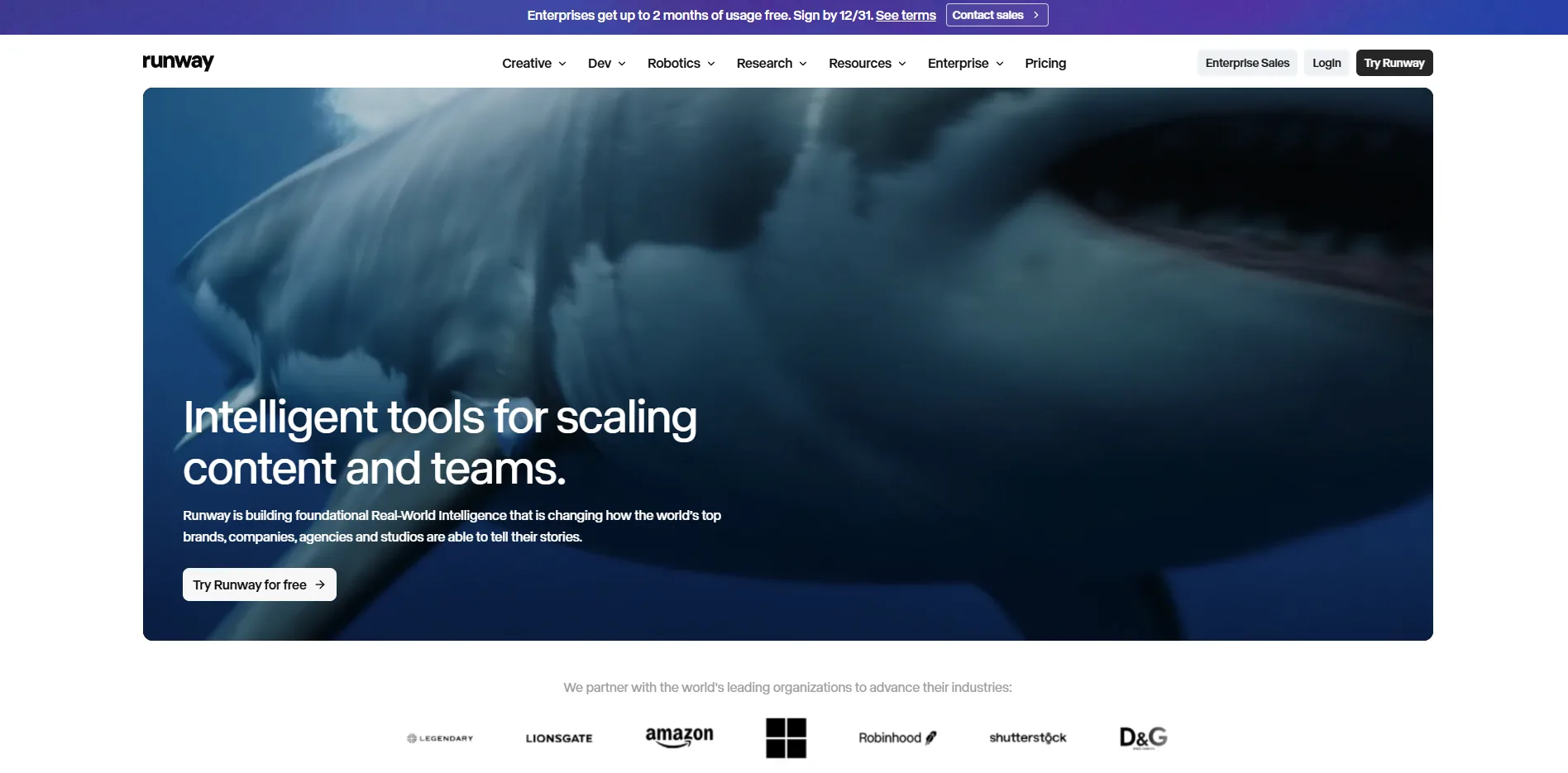
Runway lists Gen-4.5 as its newest model, but the Free plan reaches image-to-video through Gen-4 Turbo and deposits 125 credits once, with no expiry and no refill.
Gen-4 Turbo requires an input image and costs 5 credits a second, so a five-second clip costs 25 credits and 125 credits buy five of them. Neither Gen-4 Turbo nor Gen-4.5 has a blind-vote score, and Runway itself positions Turbo as the draft model for testing ideas before a final Gen-4 pass.
What You Get
Image-first design: Every clip starts from the uploaded frame, since Gen-4 requires an input image.
Predictable cost: A five-second clip costs 25 credits and a ten-second clip costs 50, known before generating.
Five or ten seconds: Both durations are available on the free model.
Prompting documentation: Runway publishes motion-first image-to-video guidance covering camera moves and implied motion.
Companion tools: Gen-4 text to image with references and text to speech are included, plus 3 video editor projects.
What You Don't
Draft model, five attempts: Free reaches only the Turbo model, and 125 credits cover five five-second clips in total.
Stamped output: Every free video carries a Runway watermark.
Pricing
Free: 125 credits, once
Standard: $15 a month, or $144 a year
Best For: One planned still for learning how Runway responds to motion prompts.
Watch: Introducing Gen-4.5 Image to Video, from Runway.
Side-by-Side Comparison Table
Start here for a quick scan. Quality is the Elo score from blind votes, where a higher number means voters prefer the model, and usable clips assume three attempts each.
Tool | Best free model | Free allowance | What it buys | Free output rights | Pick it when |
|---|---|---|---|---|---|
Dreamina | Seedance 2.0 | 120 credits a day (US) | Quote shown before each generation | Watermark, commercial depends on terms | You want the highest-ranked free model |
Google Flow | Omni Flash 1.2 | 50 credits a day | Three 5-second 720p clips a day, about 1 usable | Visible mark optional, commercial terms not stated | You want an allowance you can plan to the credit |
Kling | Kling 3.0 | Monthly claim, amount unpublished | 45 credits per 5-second 720p clip | Watermark, non-commercial | The shot is hands, gestures or a portrait |
CoAnimator | Any connected agent | No credit meter | No cap on renders | Watermark and 720p on the free tier, removed by the one-off license | The video is a demo or tutorial that will change |
PixVerse | V6 | 60 starting plus 30 daily credits | Varies by model, resolution and length | Watermark, 540p cap | You want to try several models on one still |
Runway | Gen-4 Turbo | 125 credits once | Five 5-second clips, about 1 usable | Watermark on every free video | You want to learn motion prompting on one planned shot |
The table shows what each plan offers, and four more names are worth watching.
Other Free Image-to-Video Tools Worth Trying
Five more free tools handle jobs the main six do not, from talking avatars to dance-style motion.
Canva: Best for quick, short motion effects and social graphics inside a beginner-friendly editor. Free accounts get a small AI video allowance of roughly five lifetime clips, around 4 seconds each, and the Veo-powered clip generator sits on paid plans.
HeyGen: Best for turning a portrait or product photo into a talking avatar with voice, lip sync and translation. The free plan makes three videos a month of about a minute each at 720p with a HeyGen watermark, and the Synthesia alternatives Original Design Studios compares cover more avatar options.
Flyne AI: Best for no-signup generation with MiniMax H3 from a start frame and an optional end frame. Free clips run 5 seconds at 480p with no stated generation cap, and requests can queue when demand is high.
Leonardo.Ai: Best for camera-motion control and cinematic styles across several video models, including Kling and Hailuo. Free accounts get 150 tokens a day, but only some video models are open, free generations are public, and an uploaded image as the video source needs a paid plan.
Whichever tool gets the first upload, a few habits stretch a small balance.
Getting a Usable Clip From a Small Free Balance
Most failed clips trace back to the still or the prompt, and both can be fixed before a credit is spent.
Start from a clean still: A stills generator that holds text and layout gives the video model a cleaner first frame, and the AI image generators compared for creative work show which ones do.
Set the frame first: A wrong crop wastes an attempt, so match the still to the target ratio with the Aspect Ratio & Frame tool.
Remove implied motion: Blur, dust and mid-action poses suggest movement, so a prompt asking for stillness fights the image.
Prompt the motion only: Subject action, camera move, pace and direction are enough, since the picture already supplies the rest, and adding one element per retry shows which change helped.
Keep one idea per generation: A clip behaves like a single scene, so a second beat belongs in a second generation, and on Gen-4 positive phrasing works better than naming what to avoid.
Draft cheap, finish once: Runway's Turbo, Flow's Lite and Omni Flash at 360p cost far less per attempt than final settings, so the premium setting is best saved for the clip that survives review.
A balance spent this way buys fewer wasted attempts, and seven factors settle which plan to start with.
Factors That Shape the Choice
Seven factors narrow the field, and they work best in this order.
Retake budget: One careful shot suits Runway's one-time deposit, while open-ended exploring needs a daily refill from Dreamina, Flow or PixVerse.
Publishing destination: Publishing, client work and monetized channels rule out Kling's free output, and every other plan's commercial terms are worth reading first.
Rights in the photo: Rights in the image stay with you, because PixVerse states that even a paid plan does not clear third-party IP or a person's likeness.
Confidentiality: PixVerse's public terms allow uploads to feed model improvement, and Kling's general terms carry a similar permission that can be revoked by email.
Timing: Free queues run behind paid ones, and Flow can block video at peak hours, so deadline work belongs outside the 2 PM to 5 PM UTC window.
Type of motion: Hands and gestures favor Kling, and a scene with several people moving is better split into separate shots.
Starting point: Demos, tutorials and explainers can start from a description instead of a photo, and Original Design Studios covers that route in its motion graphics software roundup.
All seven move when a vendor changes its plans, which is where the conclusion picks up.
Questions
5Is there a free image-to-video AI?
Yes. Dreamina, Google Flow, Kling, PixVerse and Runway all have free plans, and CoAnimator is free forever. Allowances run from a one-time 125 credits to a daily refill, so the clip count differs more than the headline suggests.
What is the best free image-to-video AI?
Dreamina has the highest-ranked model on a free plan, and Google Flow has the most plannable allowance. Quality and planning rarely point to the same tool, so the choice depends on what the clip is for.
Can free image-to-video clips be used commercially?
Rarely. Kling's free output is non-commercial, and every other free plan needs a terms check before a client sees the clip. Paid Kling plans remove the watermark and allow commercial use.
Which free image-to-video AI has no watermark?
None removes it outright. Google Flow lets users switch off the visible mark, but its invisible SynthID mark stays on every file, while Dreamina, Kling, PixVerse, CoAimator and Runway mark free clips.
How many clips does a free plan give?
It ranges from five clips once on Runway to about three 5-second 720p clips a day on Flow. Dreamina and PixVerse show the cost per generation in the app, and Kling publishes no free amount.
Conclusion
Free tiers in this category change faster than rankings do. Luma's pricing page now lists no standing free plan, Grok's free video access has come and gone, Google retires Veo 3.1 Fast and Quality in Flow on December 5, and Kling 4.0 has no blind-vote score yet. Any one of those can move a tool up or down this list, so the durable skill is the check and not the pick. Read the credit quote, divide the balance by it, and count the retakes a clip needs before it is usable.
The most useful experiment costs nothing. Run one still with a stubborn detail, such as hands, text or a wheel, through two plans that refill, and note how many attempts each one needs. That count says more about fit than any benchmark, this one included, and it also shows which queue and which terms a project can live with.
A usable clip is still raw material. Cutting, pacing and adding sound takes an editor, and the VEED.io alternatives compared on captions, recording and export limits are a good place to look for one. When a batch of clips has to become a finished piece, Original Design Studios' motion and video service can take the brief from there.